
Here is more information about all of the Games and Activities in the
Word Family Readers App!
(The views below are as they appear on a computer. Views vary on different devices.)

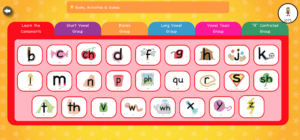
 Learn the Consonants
In this activity, students learn the letters & sounds and learn to write letters correctly. Students choose a letter. They listen to the letter, sound and word. After they watch the ball trace the letter, they trace the letter with their finger or cursor.


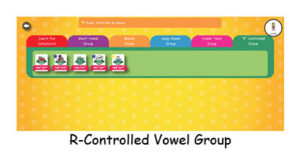
 There are 68 books in this power packed program! Students learn 34 vowel types and 570 Family Words and Sight Words.




 Twelve Games and Activities are provided for each of the 68 books!
There is a activity menu for each book. On each menu, a yellow star appears after an activity is completed, as shown below. The menu helps the students keep track of where they are.


Here are the Twelve Games and Activities!
 1. Listen to the Book
Listening to the book helps students:
-identify many Family Words,
-to become familiar with the story and illustrations,
-relate the words to their pictures as seen in the Games & Activities,
-with fluency when reading the book with you.
Tap or click on the Audio icon to hear each page.

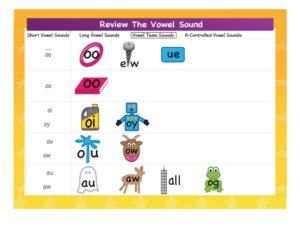
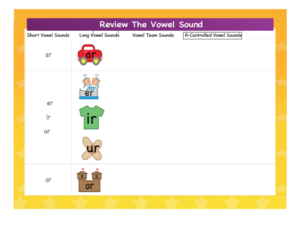
 2. Review the Vowels
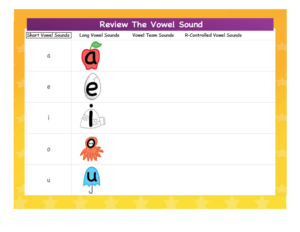
Students use the four Vowel Charts to review all vowels that have been taught in previous lessons. They may tap or click on any vowel that they do not recall to hear its letter, sound and word.

 3. Read the Review Words
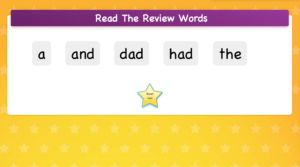
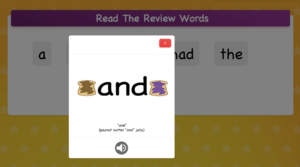
Students read words that were taught in previous lessons and that are included in the current book. Students may click or tap on any word that they do not recall to see its popup and to hear the word.
 4. Learn the Vowel Sound
Students will listen to the letter, sound and word. They watch the ball trace the letter and then trace the letter with their finger or cursor.


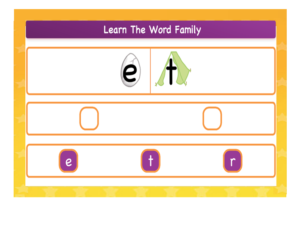
 5. Learn the Word Family
To learn the Word Family, students drag the letters up to the boxes starting with the blinking box on the left. After the letters are in place, they come together and the students hear the Word Family.


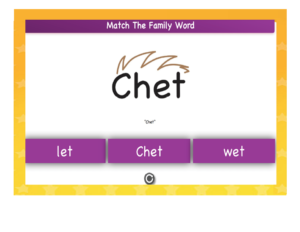
6. Match the Family Word
Students hear the word and drag the word up to the Word Picture Card to match the Family Word.

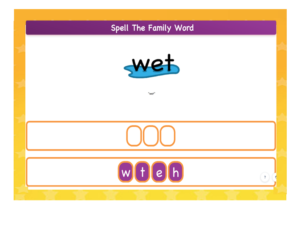
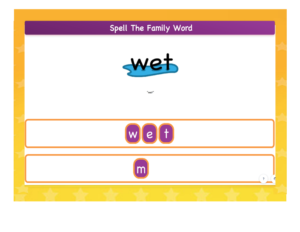
 7. Spell the Family Words
Students hear the word and drag the letters up to the boxes to spell the Family Word. They start with the blinking box.
 8. Match the Sight Word
Students hear the word and drag the word up to the Word Picture Card to match the Sight Word.


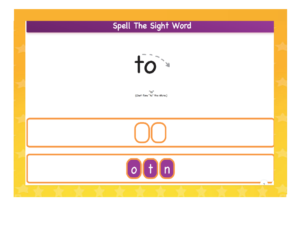
 9. Spell the Sight Words
Students hear the word and drag the letters up to the boxes to spell the Sight Word. They start with the blinking box.

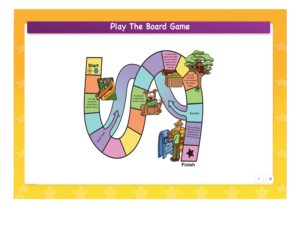
10. Play the Board Game
Students tap or click on the words that they hear. Their game piece will move one space for each word they find. The students take turns with the computer.

 11. Read the Book
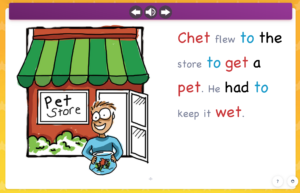
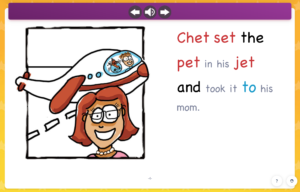
Teachers read the words in small, gray print and students read words in large print.
Words in large red print are the new Family Words.
Words in large blue print are the new Sight Words.
Words in large black print are Family Words and Sight Words that were taught in previous lessons.
If students need help with any of their words, they may tap or click on them to access their Word Picture Pop-ups and to hear the words.
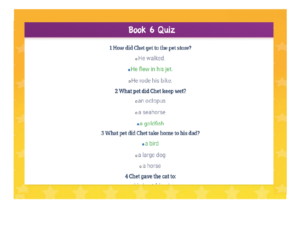
12. Take the Quiz
The teacher reads the quiz to the students. The students tap or click on the correct answers.
When students chose the correct answer, the text changes to green.
If they choose an incorrect answer, the text changes to red.
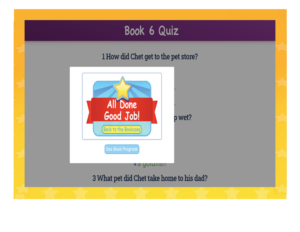
When all answers are correct, an “All done – Good Job!” banner pops up. This
pop-up also has links for “Back to the Bookcase” and “See Book Progress.”

 Throughout the games and activities for
each book, your students will be seeing stars.

A yellow star appears at the end of each activity page. Students tap on those stars to go on to the next activity.
Stars light up on the menu for each book as students go through the games & activities.

Stars light up on the completed books on the Bookcase showing the student’s progress.

Stars light up on the Book Progress chart as the students complete activities and games.
To see the Book Progress chart tap or click on the avatar in the upper right hand corner of the Bookcase page.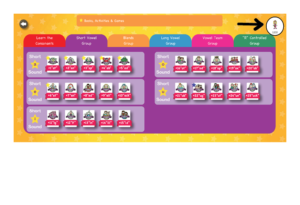
Or, click on “See Book Progress” button that appears when all of the games and activities have been completed for a book.
 To get even more information, tap or click on the question button that appears in the lower right corner for each game and activity, There is written information for teachers/parents and audio information for the students.
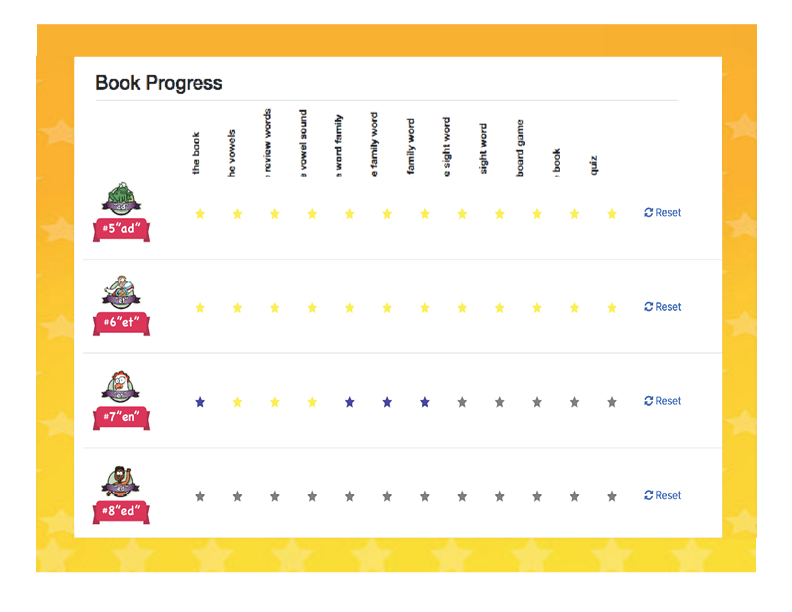
Book Progress Chart
This chart shows the progress for all activities and games.
Yellow stars indicate that the activities or games have been completed. Blue stars indicate that they are in progress. Gray stars indicate that the activities have not been started.
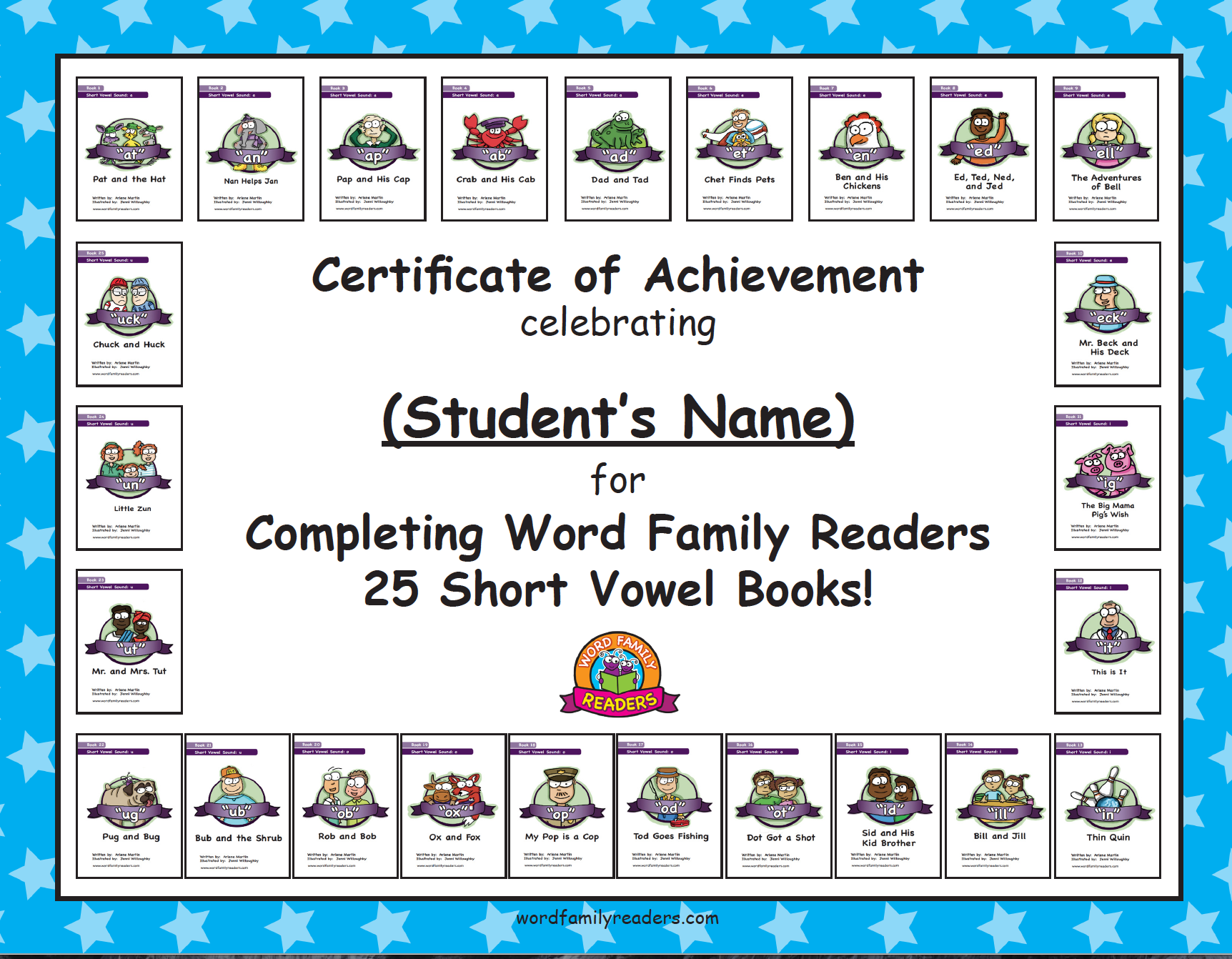
A link to a Printable Certificate appears on the Progress Chart when a student has completed a group of books, e.g., the Short Vowel Books. The student’s name will appear on the certificate.

Enjoy Much Reading Success with the
Word Family Readers App!
Word Families + Words with Pictures + Reading Books Together = Reading Success!

If you have any comments or questions about this app, please email me, Arlene Martin, at wordfamilyreaders@gmail.com. I will be happy to assist you in anyway that I can.